
How to Set Payment Terms on an Invoice

Payment terms define when the invoice payment is due relative to the invoice date. Open or create an invoice. Click the Payment Terms dropdown.

Last updated

Quick answer

To set payment terms on an invoice in CFO12, open or create the invoice and click the Payment Terms dropdown. Choose an option such as On Receipt or a set number of days. The Due Date then updates automatically from the Invoice Date and the selected terms, and you can override it if needed.

Payment terms define when the invoice payment is due relative to the invoice date.
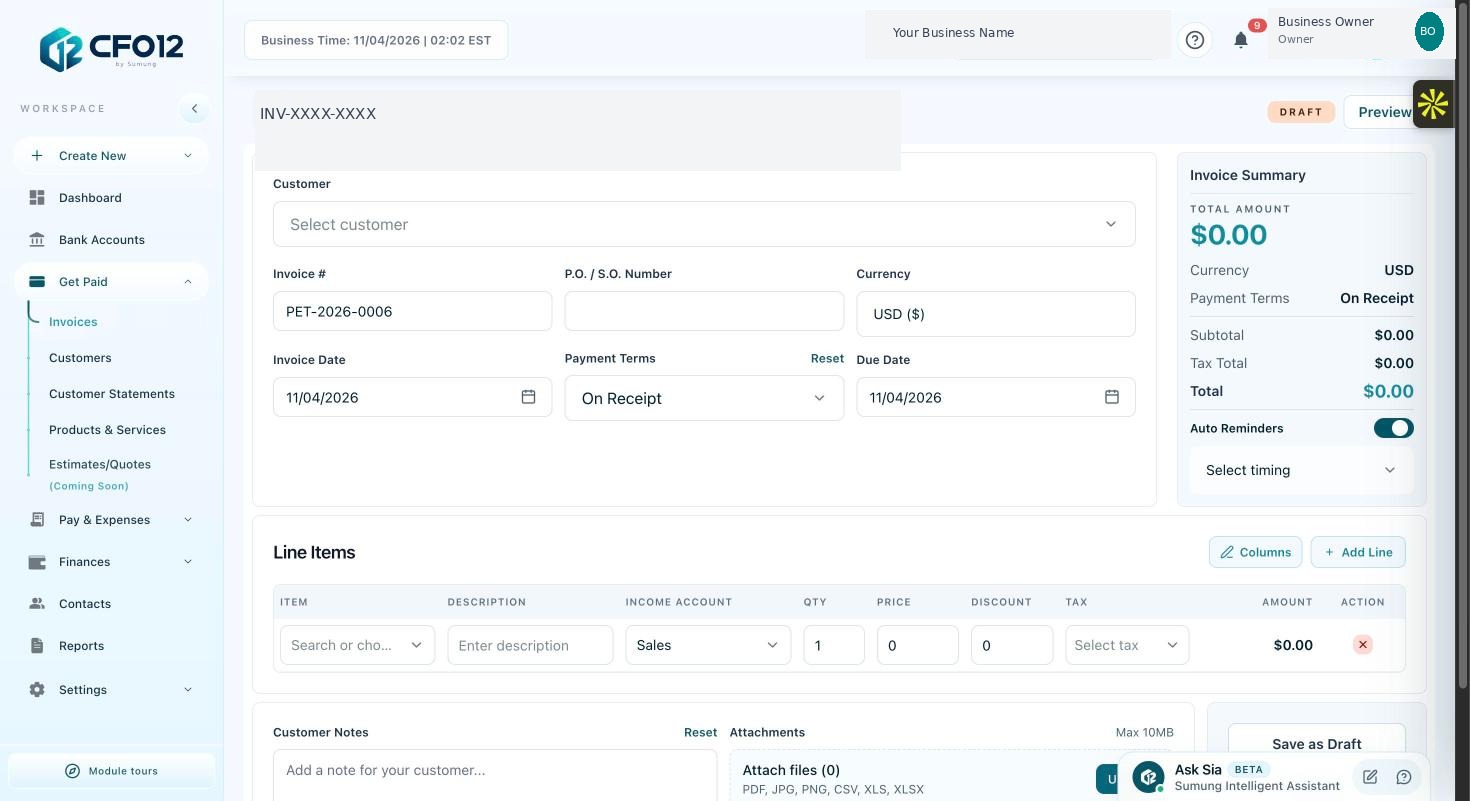
How to Set Payment Terms on an Invoice screenshot

What You Can Do

  1. Open or create an invoice.
  2. Click the Payment Terms dropdown.
  3. Select from available options such as On Receipt or a specific number of days.
  4. The Due Date field updates automatically based on the selected terms.
  5. You can also set a default payment term on a customer's contact record.

💡 Setting default payment terms on a customer saves time when creating invoices.

Related Articles

Was this article helpful?

Your feedback helps us improve our documentation.

Frequently asked questions

Can I set default payment terms for a customer?

Yes. You can set a default payment term on a customer's contact record, which saves time when you create invoices for them.

Can I pick a due date that does not follow the payment terms?

Yes. Click the Due Date field and select a custom date to override the date calculated from the payment terms.

What happens when an invoice passes its due date?

Unpaid invoices past their due date appear in the Overdue tab on the Invoices list. From there you can open the invoice and resend it or contact the customer.

Complete guideInvoicing and getting paid in CFO12: complete guide