
How to Create a New Invoice

Creating an invoice in CFO12 takes just a few steps from the Get Paid section or the Create New menu. Click Create New in the sidebar and select New Invoice,…

Last updated

Quick answer

To create an invoice in CFO12, click Create New and select New Invoice, or go to Get Paid, Invoices and click New Invoice. Choose the customer, fill in Invoice #, Invoice Date, Payment Terms and Due Date, add line items with Add Line, then click Save as Draft, Approve, or Save & Send.

Creating an invoice in CFO12 takes just a few steps from the Get Paid section or the Create New menu.
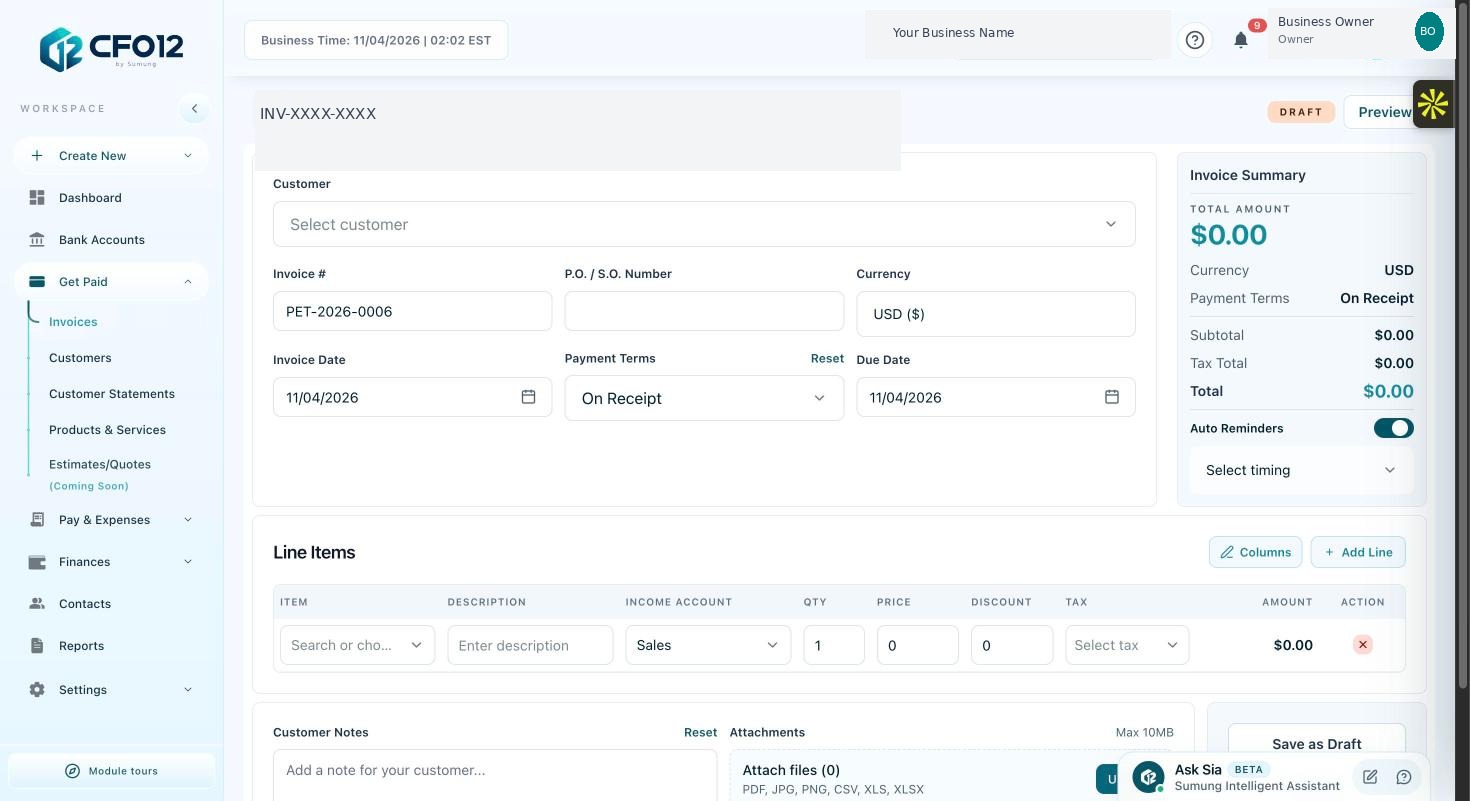
How to Create a New Invoice screenshot

What You Can Do

  1. Click Create New in the sidebar and select New Invoice, or go to Get Paid > Invoices and click New Invoice.
  2. Select the customer from the Customer dropdown.
  3. Fill in the Invoice #, Invoice Date, Payment Terms, and Due Date.
  4. Optionally add a P.O./S.O. Number.
  5. Add line items using the Add Line button.
  6. Click Save as Draft to save without sending, or Approve to approve the invoice.

💡 Use Save & Send to approve and email the invoice to your customer in one step.

Related Articles

Was this article helpful?

Your feedback helps us improve our documentation.

Frequently asked questions

Can I check how the invoice looks before sending it?

Yes. Click the Preview button near the top of the form to see the invoice PDF with line items, totals and your business details. Close the preview to return to the editor.

What is the P.O./S.O. Number field for?

It holds the purchase order or sales order number your customer gave you, and it appears on the invoice PDF. The field is optional but useful for customers who need it for their own records.

Can I attach a contract or delivery receipt to an invoice?

Yes. Use the Attachments section at the bottom of the form to upload or drag and drop files. Attachments are stored with the invoice for your records and are not included in the email sent to the customer.

Complete guideInvoicing and getting paid in CFO12: complete guide