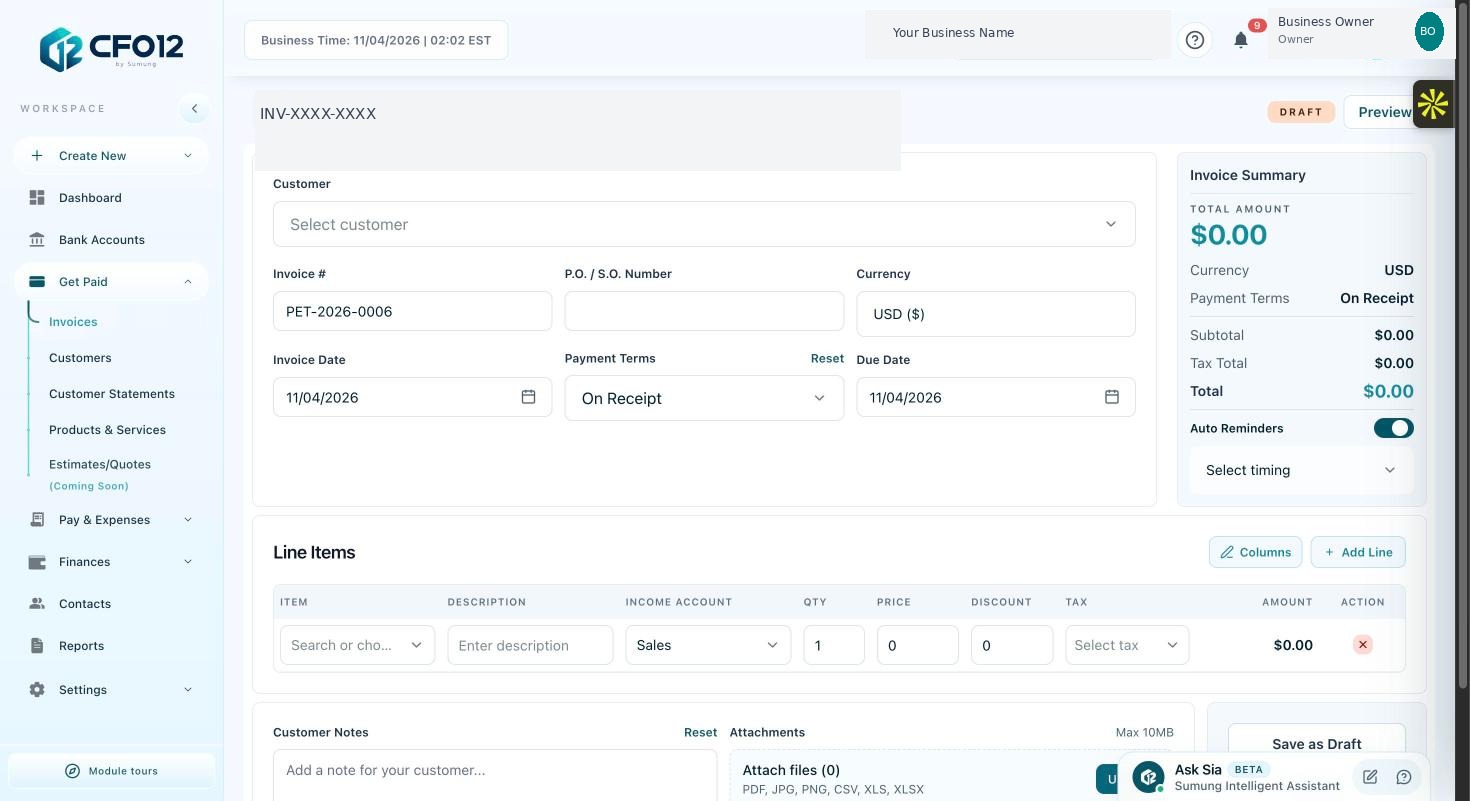
Saving an invoice as a draft lets you work on it later before sending it to a customer.
What You Can Do
- Create or open an invoice.
- Complete as much information as needed.
- Click Save as Draft at the bottom of the invoice form.
- The invoice is saved with a Draft status and appears in your Invoices list.
- Return to it at any time to continue editing.
💡 Draft invoices are not visible to your customer until they are approved and sent.
Related Articles
Was this article helpful?
Your feedback helps us improve our documentation.