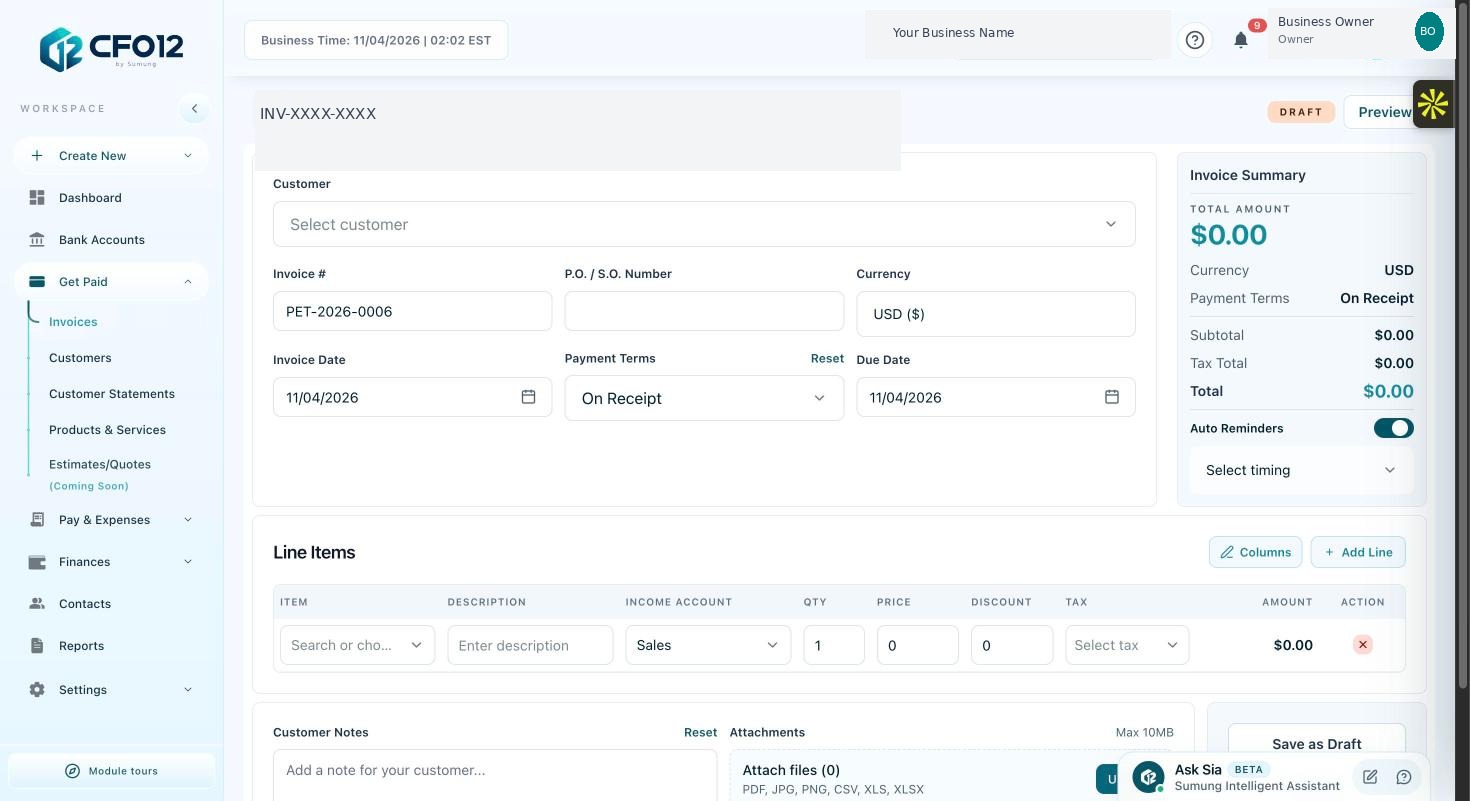
You can edit any invoice that has not yet been approved and sent to a customer.
What You Can Do
- Go to Get Paid > Invoices.
- Click on the draft invoice you want to edit.
- Make your changes to any fields — customer, dates, line items, notes, etc.
- Click Save as Draft to save your changes, or Approve to finalize the invoice.
💡 Once an invoice is approved and sent, some fields may be locked. Edit drafts before approving.
Related Articles
Was this article helpful?
Your feedback helps us improve our documentation.