
How to View Bank Account Transactions

Opening a bank account shows all transactions associated with that account. Click Bank Accounts in the left sidebar. Click on the bank account you want to view.

Last updated

Quick answer

To view a bank account's transactions in CFO12, click Bank Accounts in the left sidebar and then click the account you want. The transaction list opens with every transaction for that account, where you can browse, filter or search, and match transactions to invoices, bills or journal entries.

Opening a bank account shows all transactions associated with that account.
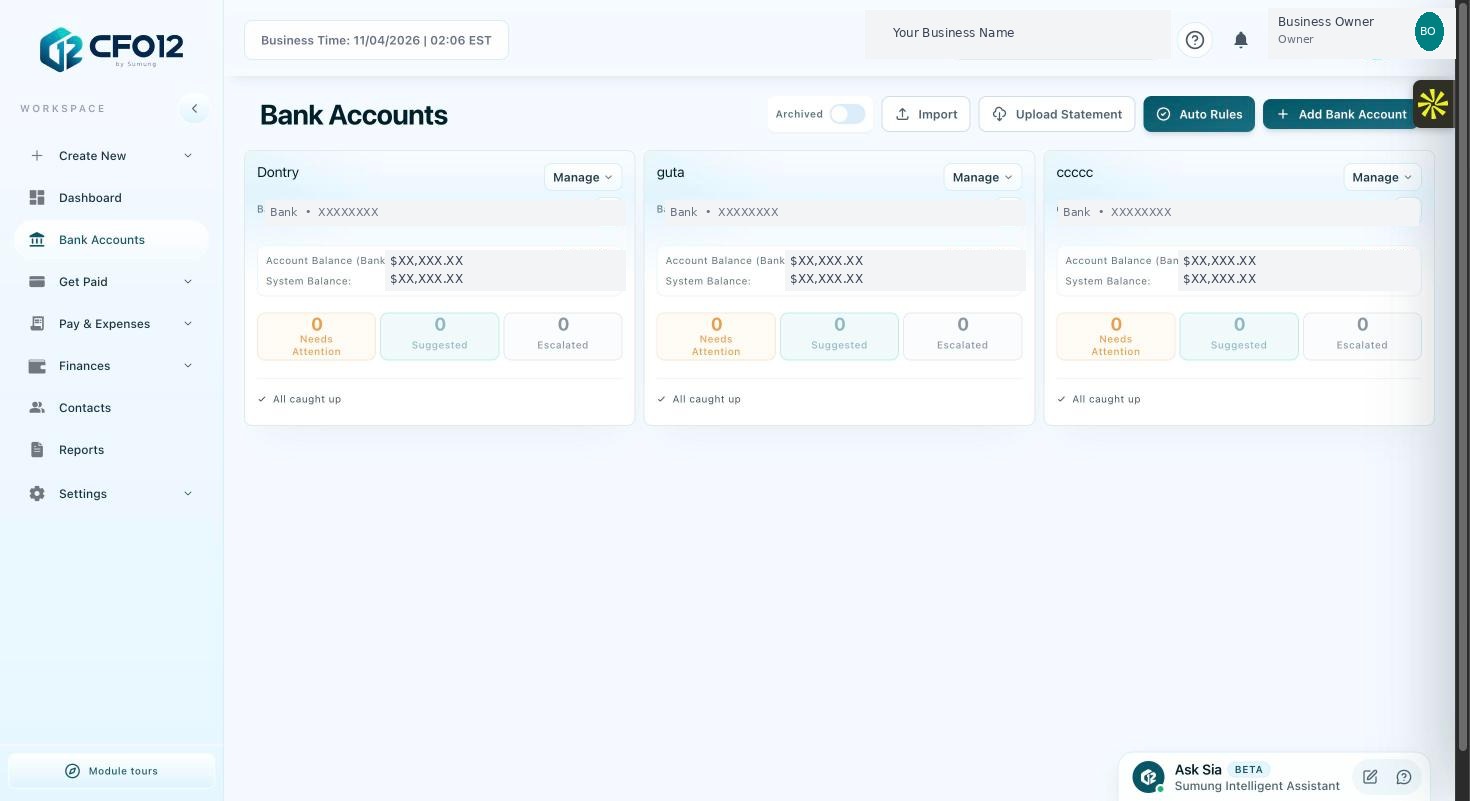
How to View Bank Account Transactions screenshot

What You Can Do

  1. Click Bank Accounts in the left sidebar.
  2. Click on the bank account you want to view.
  3. The transaction list opens showing all transactions for that account.
  4. Browse, filter, or search transactions as needed.
  5. Match transactions to invoices, bills, or journal entries from this view.

💡 Reviewing transactions regularly ensures your bank records match your books.

Related Articles

Was this article helpful?

Your feedback helps us improve our documentation.

Frequently asked questions

How do I see transactions for just one month?

Open the account and use the date range filter to pick a start and end date. The list then shows only transactions in that period; remove the filter to see everything again.

Can I export a bank account's transactions?

Yes. Open the account and use the Export option in the transaction view. The data downloads as a file you can open in a spreadsheet application.

How do I find one particular transaction?

Open the account and use the search or filter options, such as a date range or keywords, to narrow the list. Click the transaction to review its details.

Complete guideBank reconciliation in CFO12: complete guide