
How to Match a Transaction to a Bill

Matching a bank transaction to a bill confirms that a vendor payment has been made. Open the bank account and find the outgoing payment transaction.

Last updated

Quick answer

To match a bank transaction to a bill in CFO12, open the bank account under Bank Accounts and find the outgoing payment. Click the match option, search for and select the corresponding bill, then confirm. The bill is marked as paid and the transaction is marked as reconciled, confirming the vendor payment was made.

Matching a bank transaction to a bill confirms that a vendor payment has been made.
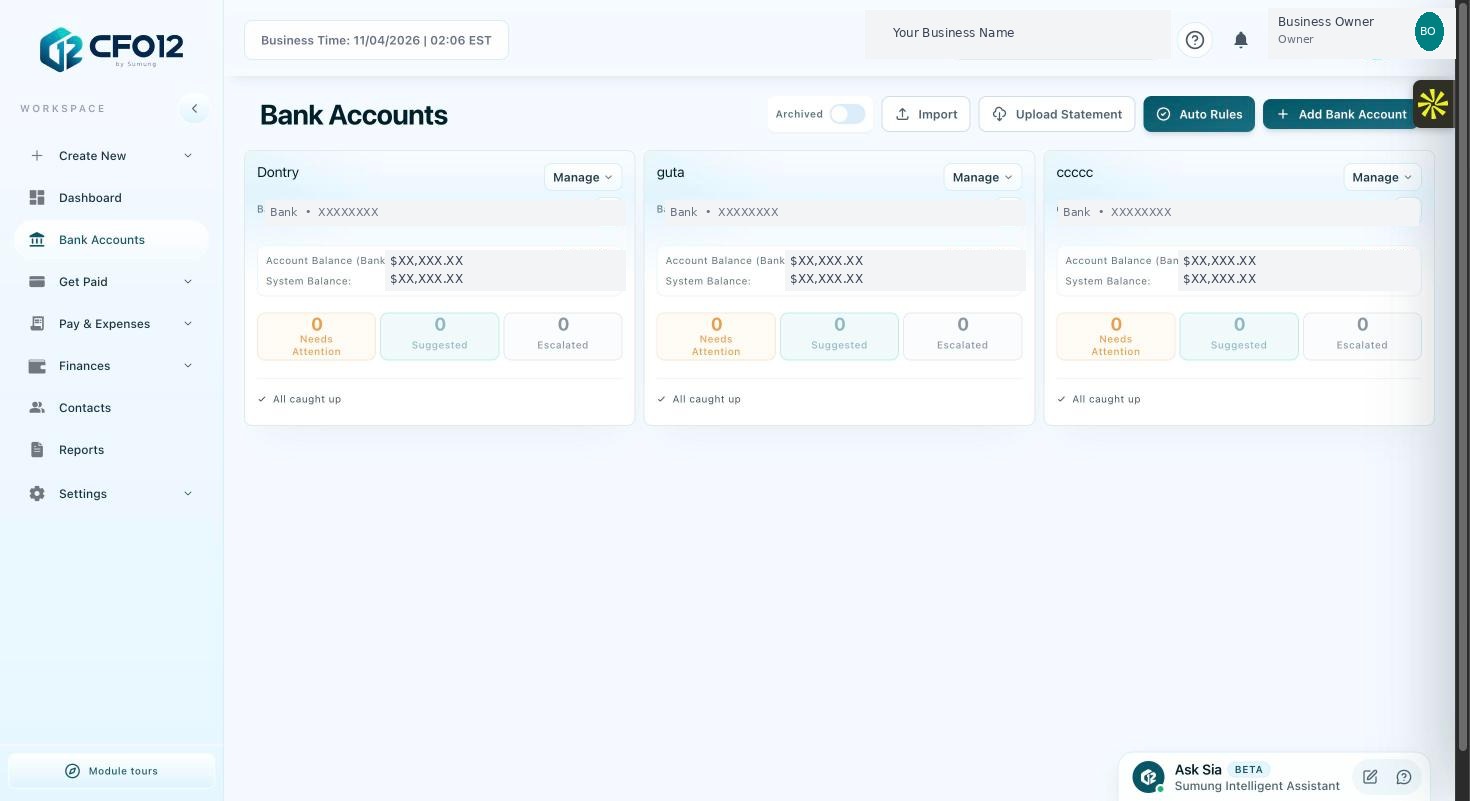
How to Match a Transaction to a Bill screenshot

What You Can Do

  1. Open the bank account and find the outgoing payment transaction.
  2. Click the match option for the transaction.
  3. Search for and select the corresponding bill.
  4. Confirm the match. The bill is marked as paid.
  5. The transaction is marked as reconciled.

💡 Matching payments to bills keeps your Accounts Payable balance accurate.

Related Articles

Was this article helpful?

Your feedback helps us improve our documentation.

Frequently asked questions

What is Accounts Payable and how does matching bills affect it?

Accounts Payable is the amount your business owes vendors for bills not yet paid. Matching each outgoing payment to its bill marks the bill as paid, which keeps your Accounts Payable balance accurate.

What if an outgoing payment has no matching bill?

Categorise it to the appropriate account from your Chart of Accounts instead, such as an expense account. Compare it with your receipts and vendor records first so you choose the right account.

How do I record a payroll payment from my bank account?

Find the payroll transaction in the bank account and categorise it to the correct payroll account, matching it to any corresponding journal entry if applicable. The payroll expense then appears in your Profit & Loss report.

Complete guideBank reconciliation in CFO12: complete guide