
How to View Unpaid Bills

Filtering for unpaid bills helps you identify what you owe to vendors. Go to Pay & Expenses > Bills. Use the status filter and select Unpaid or Approved.

Last updated

Quick answer

To see unpaid bills in CFO12, go to Pay & Expenses → Bills and use the status filter to select Unpaid or Approved. Review the outstanding bills, and add the date range filter to focus on bills due soon. Remove the filter to reset the list. For an age breakdown, use the Aged Payables report.

Filtering for unpaid bills helps you identify what you owe to vendors.
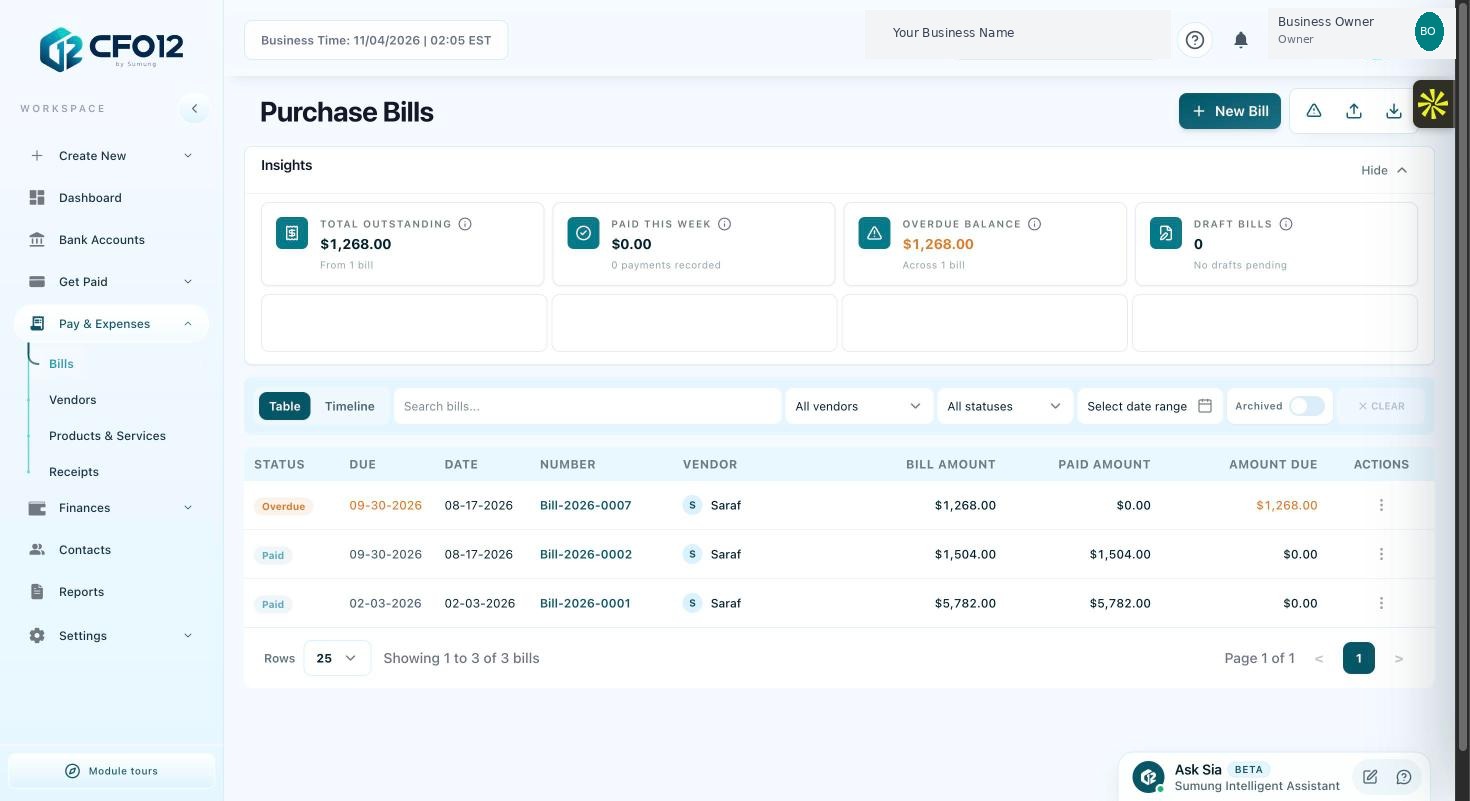
How to View Unpaid Bills screenshot

What You Can Do

  1. Go to Pay & Expenses > Bills.
  2. Use the status filter and select Unpaid or Approved.
  3. Review the list of outstanding bills.
  4. Use the date range filter to focus on bills due soon.
  5. Remove the filter to reset the list.

💡 Use the Aged Payables report for a detailed overdue age breakdown of unpaid bills.

Related Articles

Was this article helpful?

Your feedback helps us improve our documentation.

Frequently asked questions

How do I see how much I owe a single vendor?

Go to Pay & Expenses → Vendors. The outstanding balance shown for each vendor is the total unpaid bill balance, and clicking the name opens their full bill history.

Can I see upcoming bills plotted over time?

Yes. On the Bills page, click Timeline to see bills plotted along a time axis, which helps you plan upcoming payments.

Which columns does the Bills list show for each bill?

The Bills list shows Status, Due, Date, Number, Vendor, Bill Amount, Paid Amount, Amount Due and Actions.

Complete guideBills and expenses in CFO12: complete guide