
How to Add Line Items to a Bill

Line items on a bill represent the individual products, services, or expenses being recorded. Open or create a bill. In the Line Items section, click Add Line.

Last updated

Quick answer

In CFO12, open or create a bill and click Add Line in the Line Items section. Select an ITEM, choose the CATEGORY / ACCOUNT from your Chart of Accounts, then enter DESCRIPTION, QTY and PRICE. Pick a TAX rate if applicable. The AMOUNT calculates automatically and the Bill Summary updates as you go.

Line items on a bill represent the individual products, services, or expenses being recorded.
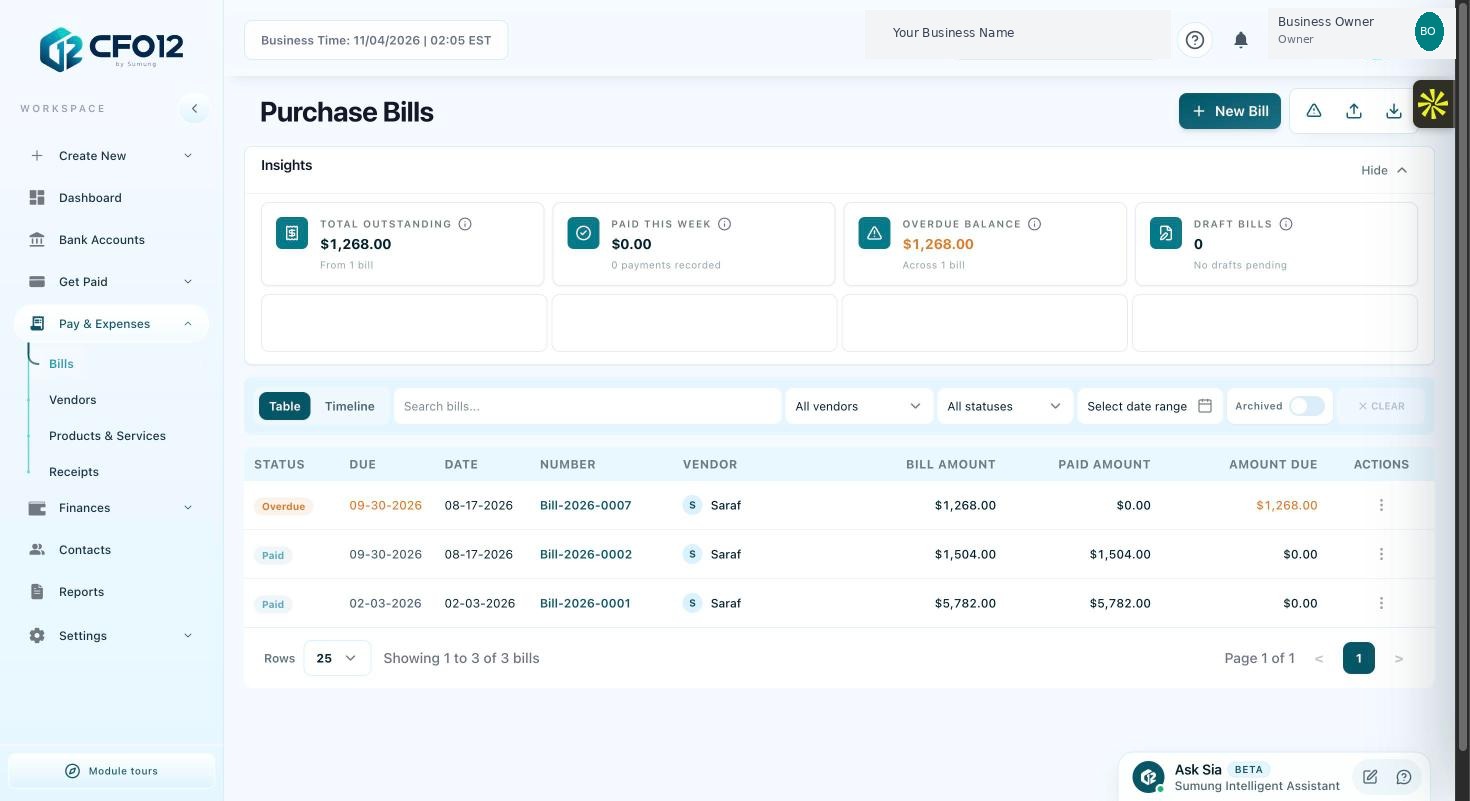
How to Add Line Items to a Bill screenshot

What You Can Do

  1. Open or create a bill.
  2. In the Line Items section, click Add Line.
  3. Select an ITEM from the dropdown or type to search.
  4. Select the CATEGORY / ACCOUNT to link it to your Chart of Accounts.
  5. Enter DESCRIPTION, QTY, and PRICE.
  6. Select a TAX rate if applicable.
  7. The AMOUNT calculates automatically.

💡 The Category / Account field links the expense to the right account for accurate P&L reporting.

Related Articles

Was this article helpful?

Your feedback helps us improve our documentation.

Frequently asked questions

How do I get my regular purchases to show in the ITEM dropdown?

Create the item under Pay & Expenses → Products & Services and toggle On bills under USAGE. Items saved this way appear in the ITEM dropdown on bill line items.

Where can I check the bill total while adding lines?

The Bill Summary panel on the right shows Subtotal, Tax Total and Total, and updates automatically as you add or edit line items. It is read-only, so make changes in the main form.

Can I change line items after saving the bill as a draft?

Yes. Open the draft bill from Pay & Expenses → Bills, change the line items, then click Save as Draft or Approve.

Complete guideBills and expenses in CFO12: complete guide