
How to Create a New Bill

Creating a bill records a purchase from a vendor so you can track what you owe. Click Create New > New Bill in the sidebar, or go to Pay & Expenses > Bills and…

Last updated

Quick answer

To create a bill in CFO12, click Create New → New Bill in the sidebar, or go to Pay & Expenses → Bills and click New Bill. Select the vendor, enter the Bill #, Bill Date and Due Date, optionally add a P.O./S.O. number, add line items with Add Line, then click Save as Draft or Approve.

Creating a bill records a purchase from a vendor so you can track what you owe.
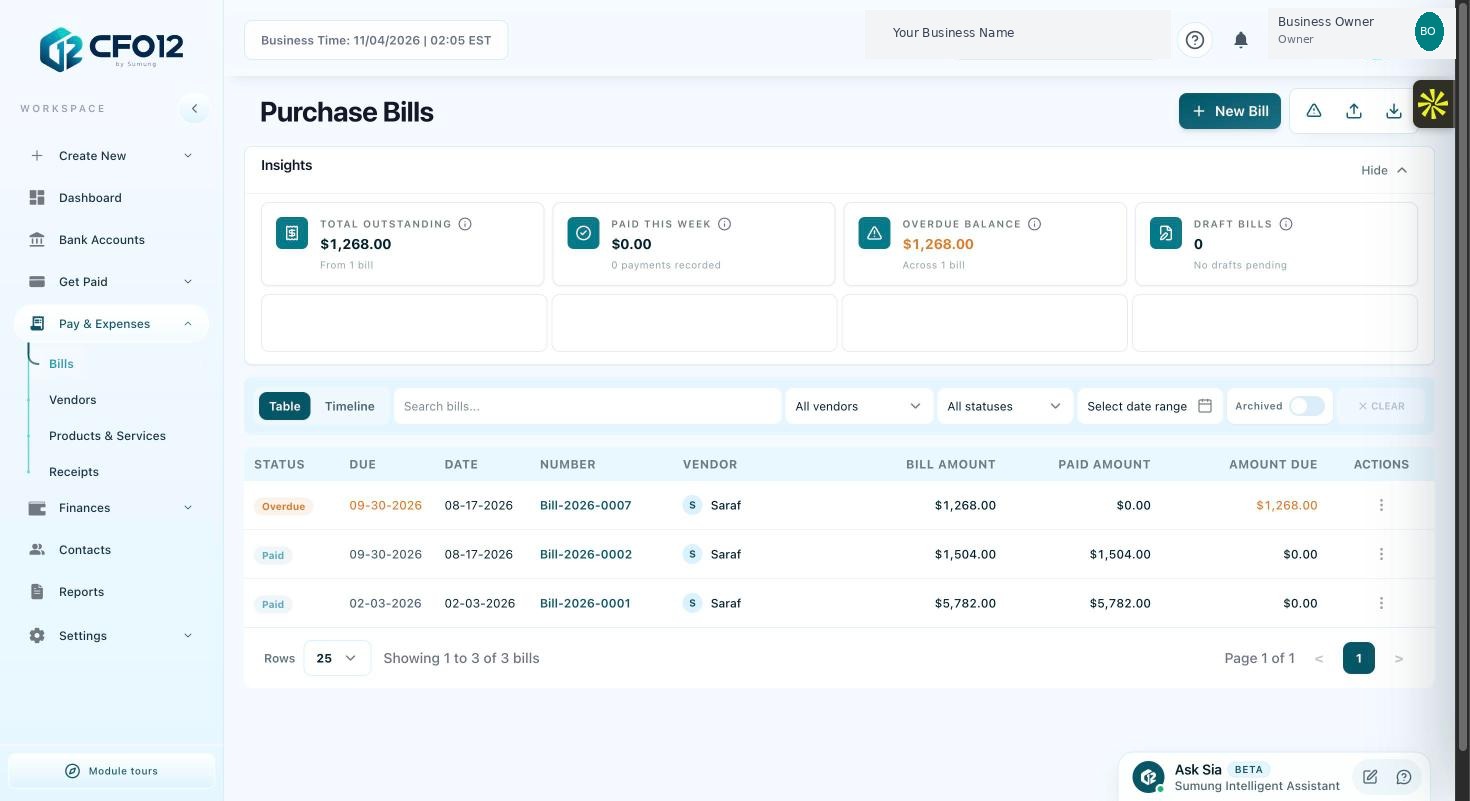
How to Create a New Bill screenshot

What You Can Do

  1. Click Create New > New Bill in the sidebar, or go to Pay & Expenses > Bills and click New Bill.
  2. Select the Vendor from the dropdown.
  3. Enter the Bill #, Bill Date, and Due Date.
  4. Optionally add a P.O./S.O. number.
  5. Add line items using Add Line.
  6. Click Save as Draft or Approve.

💡 If the supplier does not exist yet, go to Pay & Expenses > Vendors and add them first.

Related Articles

Was this article helpful?

Your feedback helps us improve our documentation.

Frequently asked questions

What if the supplier I need is not in the vendor dropdown?

Add them first under Pay & Expenses → Vendors, then return to the bill and select them.

Which date should I use as the Bill Date?

Use the actual date on the vendor's invoice. The Bill Date defaults to today's date but can be changed, and an accurate date keeps your aging reports correct.

Can I attach the vendor's original invoice to the bill?

Yes. Scroll to the Attachments section of the bill and click Upload or drag and drop the file; common document and image formats are supported.

Complete guideBills and expenses in CFO12: complete guide