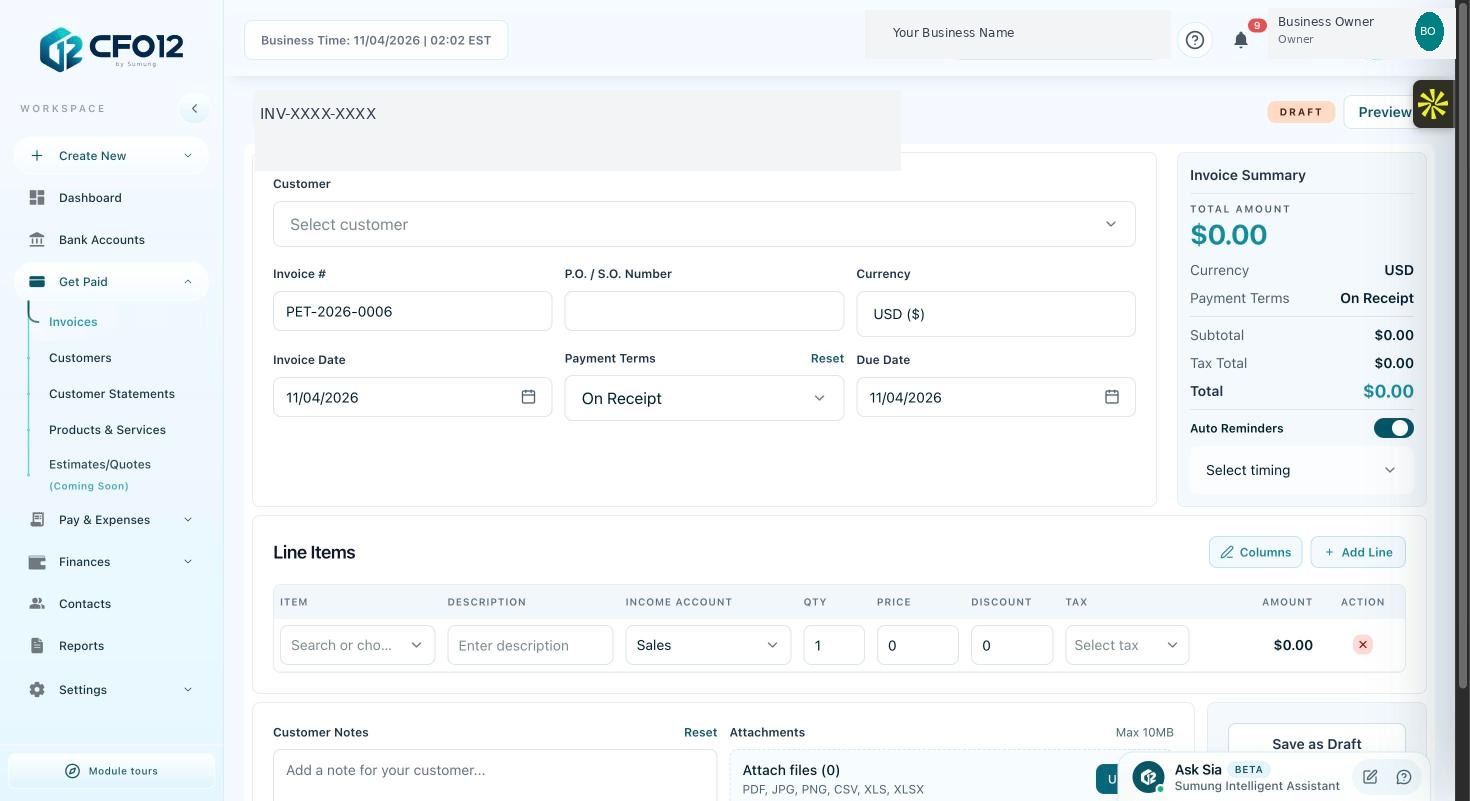
You can add a new customer contact directly while creating an invoice.
What You Can Do
- Go to Get Paid > Invoices and click New Invoice.
- In the customer field, type the new customer's name.
- If no match is found, select the option to add a new contact.
- Enter the customer's details.
- Save. The new contact is added to both Contacts and Get Paid > Customers.
💡 Adding contacts during invoice creation saves a separate trip to the Contacts section.
Related Articles
- How to Add a New Contact
- How to Create an Invoice
- Overview of Contacts
Was this article helpful?
Your feedback helps us improve our documentation.