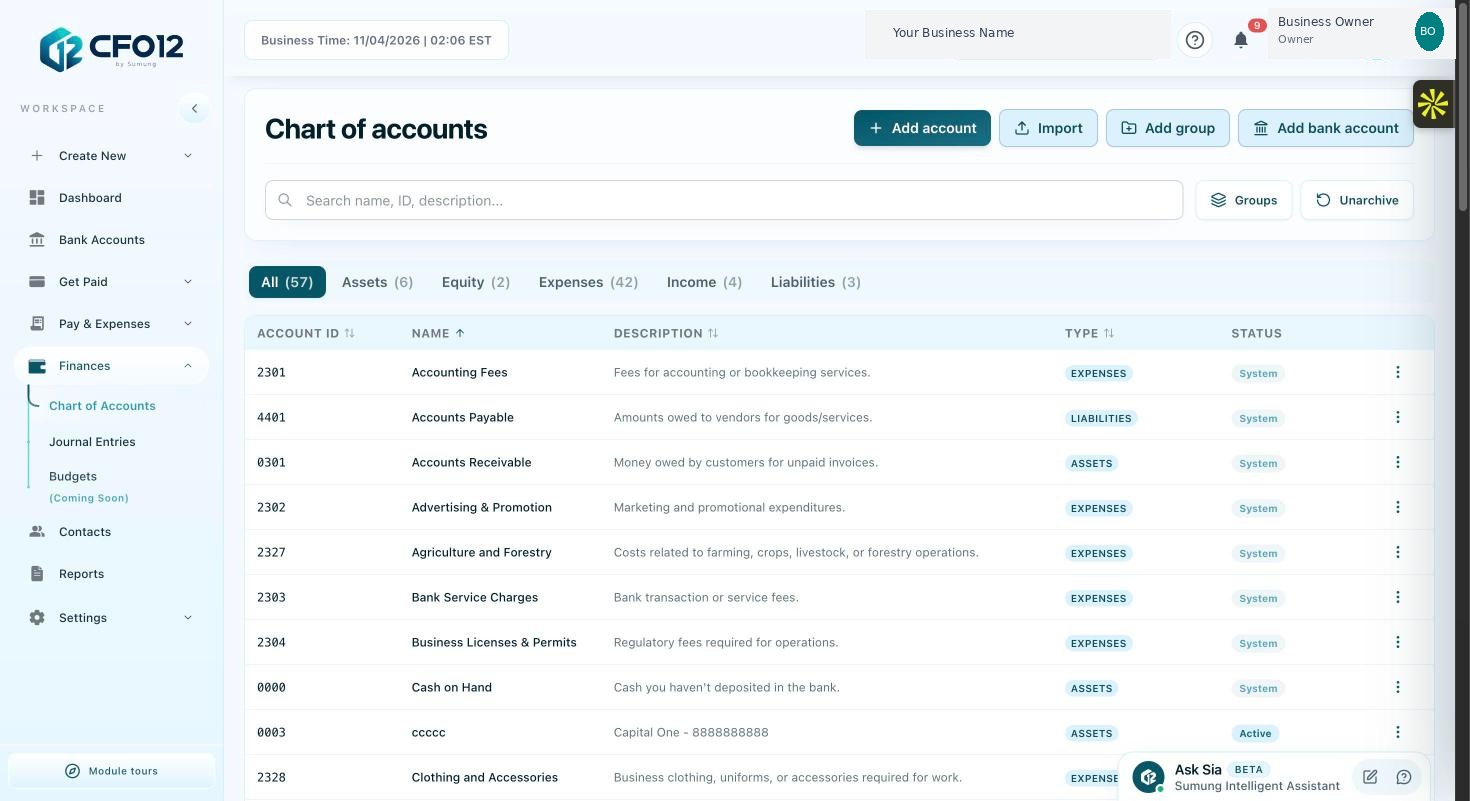
You can add a new bank account directly from the Chart of Accounts page.
What You Can Do
- Go to Chart of Accounts.
- Click Add bank account.
- Enter the account details — name, bank, and account number.
- Save. The account appears in both Chart of Accounts (as an Asset) and in Bank Accounts.
- You can now view and manage transactions for this account.
💡 Bank accounts are listed as Asset accounts in your Chart of Accounts.
Related Articles
- How to Add a Bank Account
- How to View the Chart of Accounts
- How to View All Bank Accounts
Was this article helpful?
Your feedback helps us improve our documentation.