When you have many receipts to upload, work through them systematically to keep records complete.
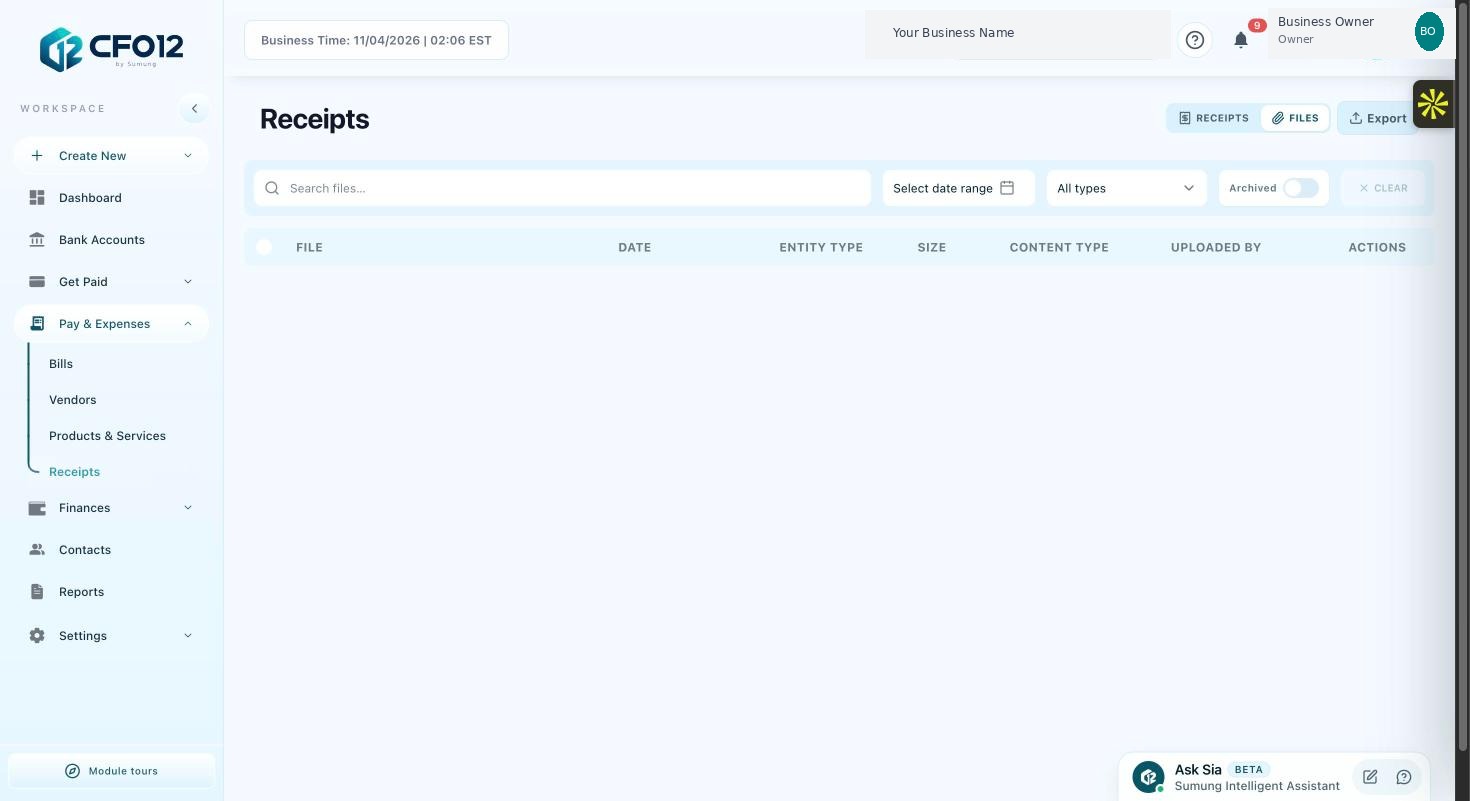
What You Can Do
- Use Create New > New Receipt for each expense.
- Upload the file and assign the correct category for each receipt.
- Use consistent naming and categories to make filtering easier later.
- Review the FILES tab regularly to ensure all uploads are uploaded records.
💡 Uploading receipts regularly keeps your records current.
Related Articles
Was this article helpful?
Your feedback helps us improve our documentation.