Uploading a file to a receipt stores the digital copy of your expense document in CFO12.
What You Can Do
- Open or create a receipt record.
- Click Upload to attach a file to the receipt.
- Supported file formats are: PDF, JPG, PNG, CSV, XLS, and XLSX.
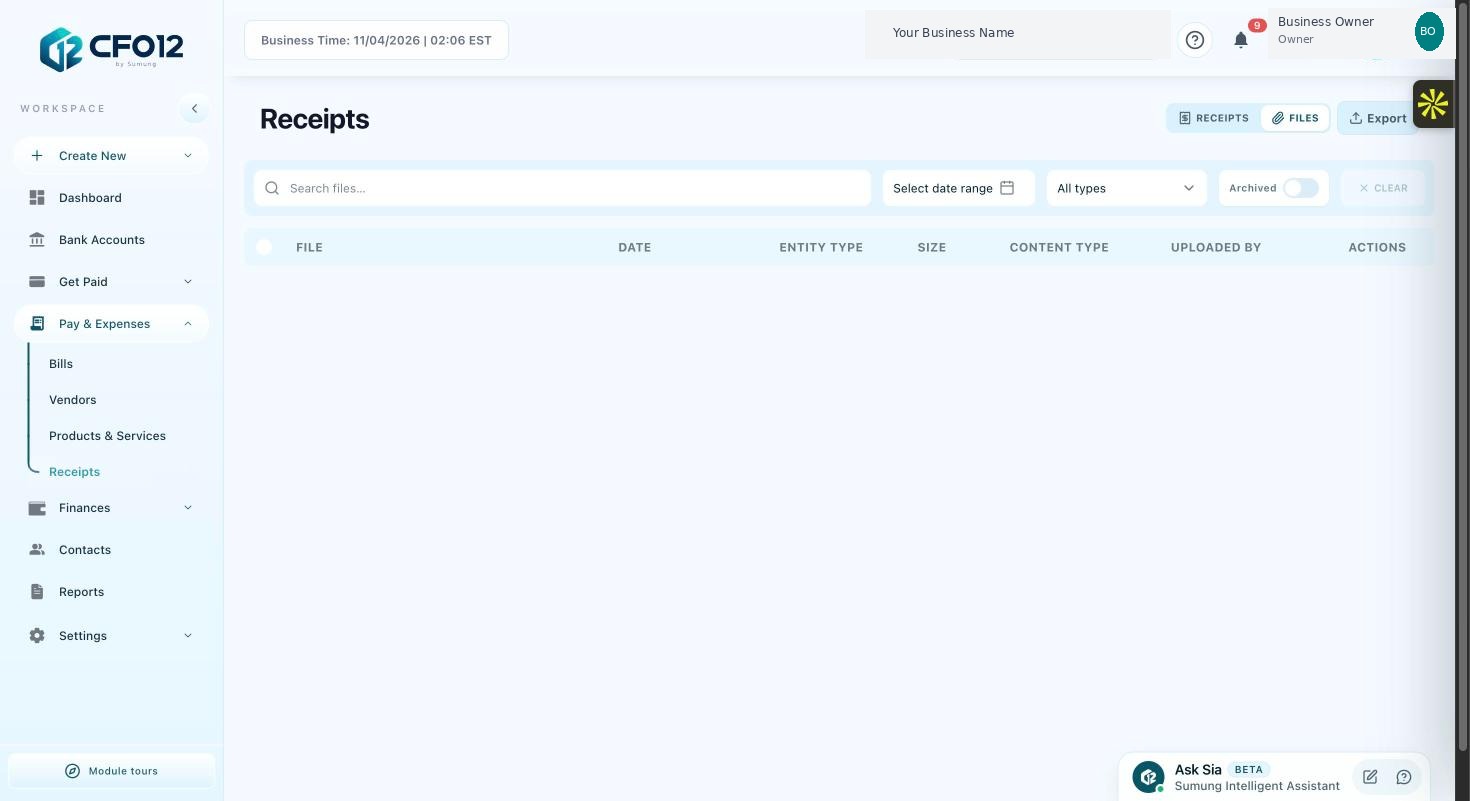
- The uploaded file is stored with the receipt and viewable from the FILES tab.
💡 Uploading receipt files digitally eliminates the need to keep paper copies.
Related Articles
- How to Create a New Receipt
- What Is the Files Tab in Receipts?
- How to View All Receipt Files
Was this article helpful?
Your feedback helps us improve our documentation.